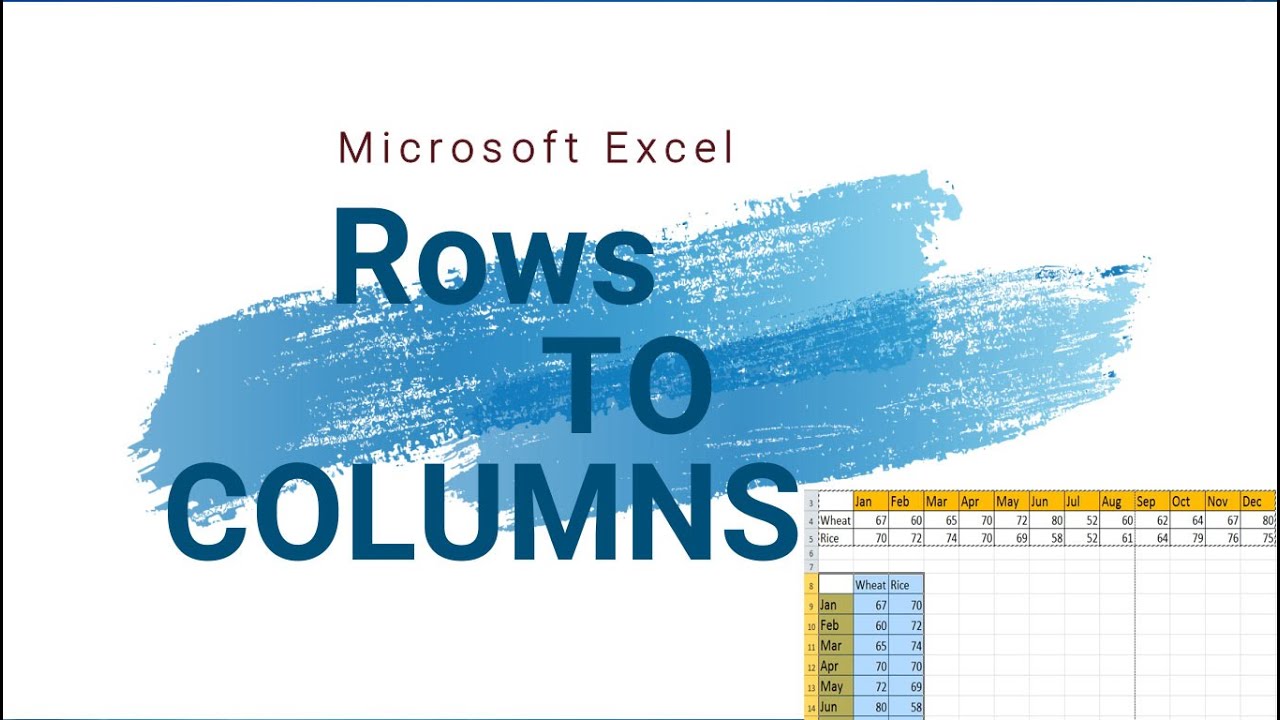
Want to quickly switch your data from rows to columns in Excel? In this step-by-step tutorial, you’ll learn how to use the Transpose feature in Excel to instantly convert rows into columns (and columns into rows) without retyping your data. Whether you’re working on reports, dashboards, or data analysis, mastering the Transpose option will save you a lot of time and effort.
We’ll cover two powerful methods: ✔️ Copy-Paste Transpose – the simplest way to rotate your data. ✔️ TRANSPOSE Function – a dynamic formula-based method that updates automatically when your source data changes.
By the end of this video, you’ll know exactly how to:
Select and copy your data.
Use Paste Special → Transpose option.
Apply the TRANSPOSE formula with Ctrl+Shift+Enter.
Choose the right method depending on your project.
This Excel tutorial is perfect for beginners as well as professionals who want to organize their data more effectively.
👉 If you find this video helpful, don’t forget to Like, Share, and Subscribe for more Excel tips and tricks!
In this video, you’ll discover how to use Conditional Formatting in Excel to make your data more meaningful and visually appealing. We’ll walk through step-by-step examples on highlighting cells based on values etc. Perfect for beginners and intermediate Excel users, this tutorial will help you quickly identify trends, spot errors, and analyze data patterns with ease.
This website uses cookies to enhance your browsing experience. By continuing to use this site, you consent to the use of cookies. Please review our Privacy Policy for more information on how we handle your data. Cookie Policy
These cookies are essential for the website to function properly.
These cookies help us understand how visitors interact with the website.
These cookies are used to deliver personalized advertisements.