


Table of contents [Show]
1. Understanding the Core: v-model and Form Data
v-model is the backbone of all Vue forms. It creates a two-way binding between a form input and your component’s data. For example:
<template>
  <input v-model="userName" placeholder="Enter your name" />
  <p>Hello, {{ userName }}!</p>
</template>
<script setup>
import { ref } from 'vue'
const userName = ref('')
</script>
This small snippet dynamically updates the paragraph whenever the user types. The ref() stores the reactive state, and v-model keeps it in sync.
2. Building a Multistep Form Structure
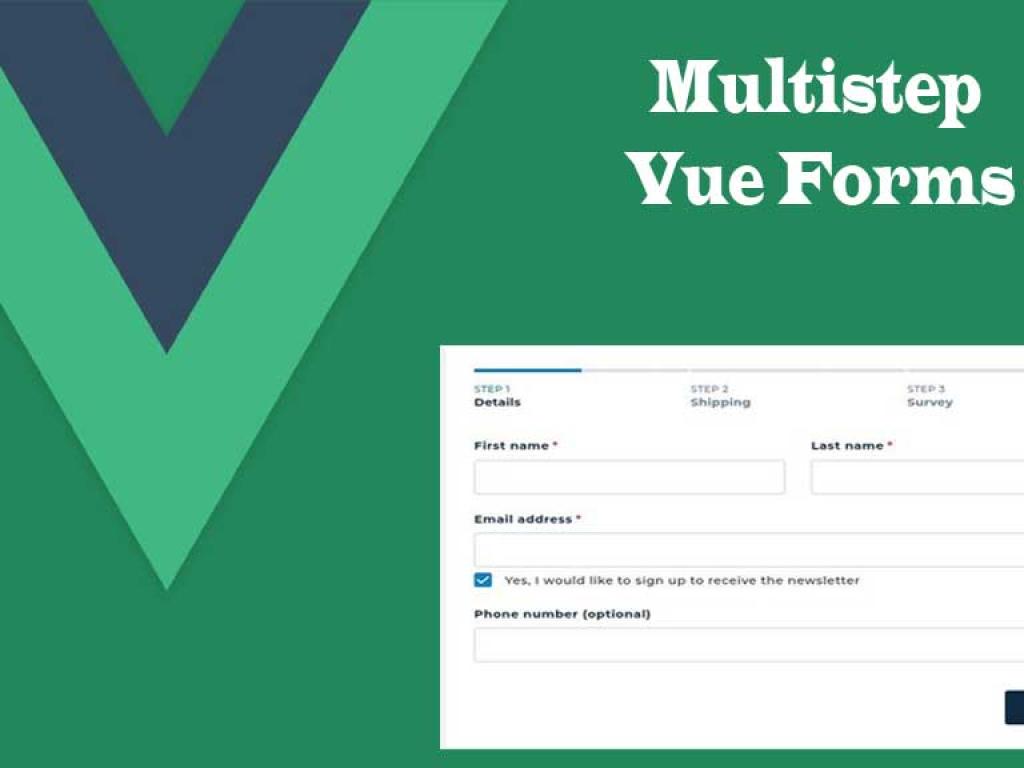
A multistep form is essentially a wizard where users complete one section at a time. The best practice is to split each step into its own component. Let’s build the structure.
2.1 The Main Component
<template>
  <div>
    <component :is="steps[currentStep].component"
               v-model="formData" />
    <div>
      <button @click="prevStep" :disabled="currentStep === 0">Back</button>
      <button @click="nextStep">
        {{ currentStep === steps.length - 1 ? 'Submit' : 'Next' }}
      </button>
    </div>
  </div>
</template>
<script setup>
import { ref, reactive } from 'vue'
import StepPersonal from './StepPersonal.vue'
import StepContact from './StepContact.vue'
import StepUpload from './StepUpload.vue'
const currentStep = ref(0)
const formData = reactive({
  name: '',
  email: '',
  phone: '',
  resume: null
})
const steps = [
  { name: 'Personal Info', component: StepPersonal },
  { name: 'Contact Info', component: StepContact },
  { name: 'Upload', component: StepUpload }
]
function nextStep() {
  if (currentStep.value < steps.length - 1) currentStep.value++
  else submitForm()
}
function prevStep() {
  if (currentStep.value > 0) currentStep.value--
}
function submitForm() {
  console.log('Final Form Data:', formData)
  alert('Form submitted successfully!')
}
</script>
Here, each step is represented by a component in the steps array, and component :is dynamically loads it. The formData object is shared across steps using v-model.
3. Step 1: Personal Info Form
Let’s create a StepPersonal.vue file with name input and validation.
<template>
  <div>
    <h3>Step 1: Personal Info</h3>
    <label>Full Name:</label>
    <input v-model="modelValue.name" placeholder="Enter full name" />
    <span v-if="!modelValue.name">Name is required</span>
  </div>
</template>
<script setup>
const props = defineProps(['modelValue'])
const emit = defineEmits(['update:modelValue'])
</script>
The key here is v-model binding on modelValue — the child communicates changes back to the parent form.
4. Step 2: Contact Info with Validation
Let’s add email and phone validation using v-model and reactive computed properties.
<template>
  <div>
    <h3>Step 2: Contact Info</h3>
    <label>Email:</label>
    <input v-model="modelValue.email" placeholder="Enter your email" />
    <span v-if="!isValidEmail">Invalid email format</span>
    <label>Phone:</label>
    <input v-model="modelValue.phone" placeholder="Enter your phone" />
    <span v-if="!isValidPhone">Invalid phone number</span>
  </div>
</template>
<script setup>
import { computed } from 'vue'
const props = defineProps(['modelValue'])
const emit = defineEmits(['update:modelValue'])
const isValidEmail = computed(() => /\S+@\S+\.\S+/.test(props.modelValue.email))
const isValidPhone = computed(() => /^\d{10}$/.test(props.modelValue.phone))
</script>
This ensures validation happens reactively — as users type, Vue recomputes the validation state. You could extend this using libraries like VeeValidate or Yup.
5. Step 3: Advanced File Upload
File uploads in Vue can be tricky, especially when you need preview and validation. Let’s make it robust.
<template>
  <div>
    <h3>Step 3: Upload Resume</h3>
    <input type="file" @change="handleFile" accept=".pdf,.doc,.docx" />
    <div v-if="preview">
      <p>Uploaded file: {{ preview.name }} ({{ preview.size / 1024 }} KB)</p>
    </div>
    <span v-if="error">{{ error }}</span>
  </div>
</template>
<script setup>
import { ref } from 'vue'
const props = defineProps(['modelValue'])
const emit = defineEmits(['update:modelValue'])
const preview = ref(null)
const error = ref('')
function handleFile(event) {
  const file = event.target.files[0]
  if (!file) return
  if (file.size > 2 * 1024 * 1024) {
    error.value = 'File too large! (max 2MB)'
    return
  }
  preview.value = file
  emit('update:modelValue', { ...props.modelValue, resume: file })
  error.value = ''
}
</script>
This example enforces a 2MB limit and previews the file name. In production, you might upload the file immediately via Axios and handle progress events:
import axios from 'axios'
async function uploadFile(file) {
  const formData = new FormData()
  formData.append('resume', file)
  await axios.post('/api/upload', formData, {
    headers: { 'Content-Type': 'multipart/form-data' },
    onUploadProgress: (e) => {
      console.log('Upload Progress:', Math.round((e.loaded / e.total) * 100))
    }
  })
}
6. Combining Everything: Full Working Example
Here’s the complete working multistep Vue 3 app combining all steps, validations, and upload logic.
<template>
 <div>
  <h2>Vue 3 Multistep Form Wizard</h2>
  <component :is="steps[currentStep].component" v-model="formData" />
  <div >
   <button @click="prevStep" :disabled="currentStep === 0">Back</button>
   <button @click="nextStep">
    {{ currentStep === steps.length - 1 ? 'Submit' : 'Next' }}
   </button>
  </div>
  <pre>{{ formData }}</pre>
 </div>
</template>
<script setup>
import { ref, reactive } from 'vue'
import StepPersonal from './StepPersonal.vue'
import StepContact from './StepContact.vue'
import StepUpload from './StepUpload.vue'
const currentStep = ref(0)
const formData = reactive({
 name: '',
 email: '',
 phone: '',
 resume: null
})
const steps = [
 { component: StepPersonal },
 { component: StepContact },
 { component: StepUpload }
]
function nextStep() {
 if (currentStep.value < steps.length - 1) currentStep.value++
 else handleSubmit()
}
function prevStep() {
 if (currentStep.value > 0) currentStep.value--
}
function handleSubmit() {
 console.log('Submitting data...', formData)
 alert('Form submitted successfully!')
}
</script>
This app demonstrates data persistence across steps, reusable validation logic, and a clean structure that scales to large forms.
7. Enhancements and Best Practices
- Use a validation library: Integrate
VeeValidateorYupfor robust schema-based validation. - Persist form state: Save progress in
localStorageor Vuex/Pinia for resilience against refreshes. - Async validation: For example, check if an email already exists before moving to the next step.
- Upload progress bars: Bind Axios upload progress events to a progress bar UI for better UX.
- Accessibility: Use proper
<label>associations and focus management when moving between steps.
8. Final Thoughts
Multistep forms don’t have to be a pain to build. With Vue 3’s reactivity and component-based design, you can create powerful, user-friendly form wizards that scale. The keys are:
- Use v-model for two-way data binding.
- Modularize each step into a reusable component.
- Validate early and show clear feedback.
- Handle file uploads safely and provide progress feedback.
Once you master this pattern, you’ll use it everywhere — from user registration flows to multi-page onboarding systems. The same logic applies when connecting to real APIs or integrating with authentication systems.


