


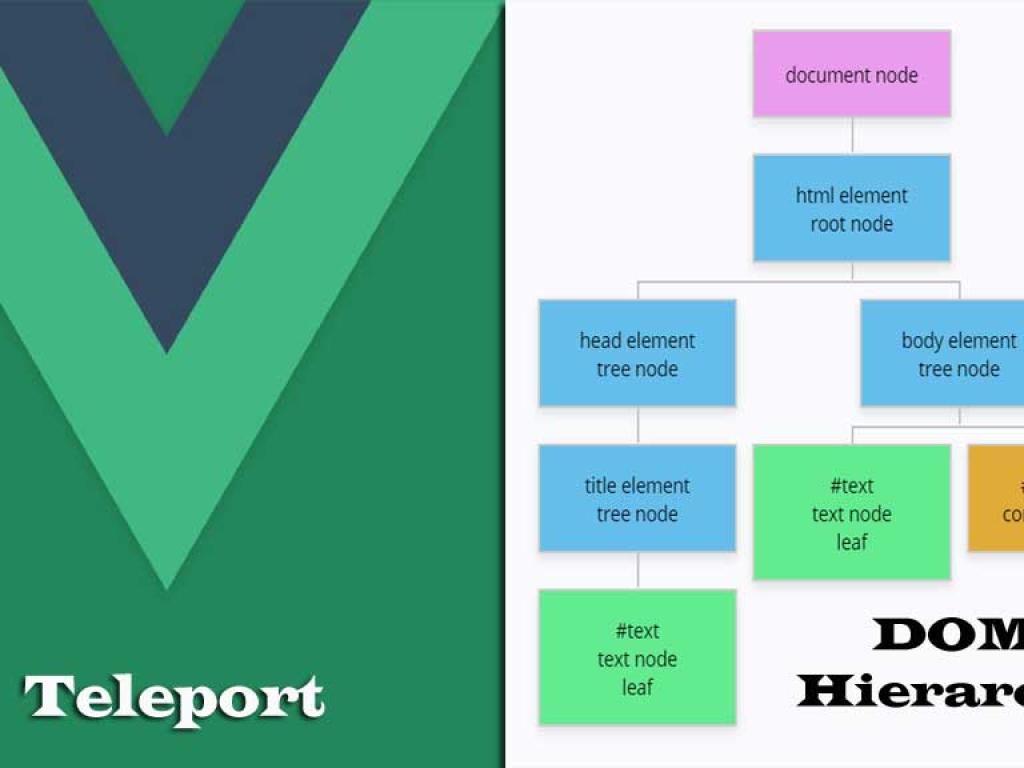
If you’ve worked with modern web apps, you’ve likely run into situations where a component needs to visually “break out” of its parent container. Think modals, tooltips, dropdowns, or notifications. In Vue 2, developers often hacked their way through with libraries or custom mounting logic. But Vue 3 gave us a game-changer: <teleport>. With Teleport, you can render a component in a different place in the DOM while keeping its logic and reactivity intact. It's like saying: “Hey Vue, this part belongs somewhere else visually, but still keep it wired up in the same app.”
Table of contents [Show]
What is Teleport in Vue 3?
<teleport> is a built-in component in Vue 3 that allows you to render part of a component’s template into a different location in the DOM. This makes it easy to manage UI patterns that break out of the normal DOM hierarchy, like modals or fixed-position components.
Why Use Teleport?
- Modals and Dialogs: Place them at the root of the DOM to avoid z-index issues.
- Tooltips and Dropdowns: Prevent parent containers from clipping or hiding them.
- Notifications: Show global alerts without deeply nesting logic.
- Clean Layout: Keep your templates organized while rendering UI in the right place.
Basic Example of Teleport
Let’s start with a simple demo. Suppose we want to render a modal component, but instead of keeping it inside the parent’s container, we want it at the end of the <body>.
<template>
 <div>
  <h1>Vue 3 Teleport Example</h1>
  <button @click="showModal = true">Open Modal</button>
  <teleport to="body">
   <div v-if="showModal" >
    <h2>I'm teleported!</h2>
    <button @click="showModal = false">Close</button>
   </div>
  </teleport>
 </div>
</template>
<script setup>
import { ref } from 'vue'
const showModal = ref(false)
</script>
Even though the modal is written inside App.vue, it renders directly inside the <body> tag. This prevents issues with CSS stacking contexts and allows the modal to overlay everything.
Step-by-Step Guide to Using Teleport
Step 1: Decide What Should Be Teleported
Identify components like modals, tooltips, or notifications that should live outside of their parent container visually.
Step 2: Use the <teleport> Tag
Wrap the element inside <teleport> and specify the target DOM element with the to attribute.
<teleport to="#modal-root">
  <MyModal v-if="showModal" />
</teleport>
Step 3: Add the Target Element in Your HTML
You need a destination element where Vue will render the teleported content.
<body>
  <div id="app"></div>
  <div id="modal-root"></div>
</body>
Step 4: Maintain Reactivity
Even if the component is teleported, it retains all reactivity from its original component tree. State, props, and events still work the same.
Teleport with Conditional Rendering
You can combine v-if with Teleport to control visibility easily.
<teleport to="body">
 <div v-if="isOpen" >
  Dropdown content here
 </div>
</teleport>
Multiple Teleports
You can teleport multiple components to different targets.
<teleport to="#notifications">
  <Notification v-for="n in notifications" :key="n.id" :message="n.message" />
</teleport>
<teleport to="#modals">
  <MyModal v-if="showModal" />
</teleport>
Real-World Example: Building a Modal System with Teleport
Let’s build a reusable modal system where the modal content is teleported to a dedicated <div> outside the main app.
Step 1: Create a Modal Component
<template>
  <teleport to="#modals">
    <div v-if="visible" class1="modal-overlay">
      <div class1="modal-content">
        <slot />
        <button @click="$emit('close')">Close</button>
      </div>
    </div>
  </teleport>
</template>
<script setup>
defineProps({
  visible: {
    type: Boolean,
    required: true
  }
})
</script>
Step 2: Add Modal Target in index.html
<body>
  <div id="app"></div>
  <div id="modals"></div>
</body>
Step 3: Use Modal in App.vue
<template>
  <div>
    <h1>Vue 3 Teleport Modal Example</h1>
    <button @click="showModal = true">Open Modal</button>
    <Modal :visible="showModal" @close="showModal = false">
      <h2>Hello from the Modal!</h2>
      <p>This is content passed via slot.</p>
    </Modal>
  </div>
</template>
<script setup>
import { ref } from 'vue'
import Modal from './Modal.vue'
const showModal = ref(false)
</script>
This modal system is clean, reusable, and avoids DOM hierarchy issues by teleporting content directly to #modals.
Teleport with Multiple Slots
You can pass different slot content and still teleport them properly.
<Modal :visible="showModal">
  <template #header>Custom Header</template>
  <template #default>Main Content</template>
  <template #footer>Footer Actions</template>
</Modal>
Best Practices with Vue Teleport
- Keep targets organized: Have dedicated root elements like
#modals,#notifications. - Don’t overuse teleport: Only use it for UI elements that need to escape the DOM hierarchy.
- Combine with accessibility features: For modals, add ARIA roles for screen readers.
- Handle scroll lock: When opening modals, prevent background scrolling for better UX.
Conclusion
Vue 3 Teleport is one of those features you’ll wonder how you lived without. It solves common UI problems, keeps your component logic clean, and simplifies rendering modals, tooltips, and notifications. By mastering Teleport, you’ll have more control over your app’s UI while maintaining Vue’s reactivity and composability.


