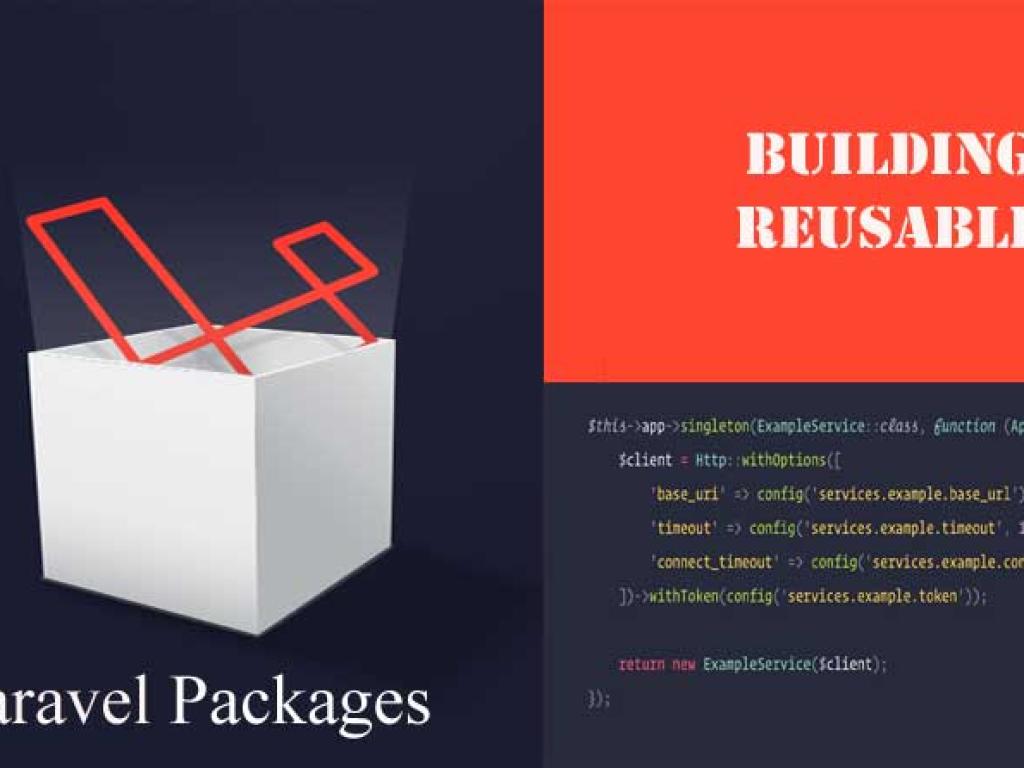
This comprehensive tutorial walks you through building reusable Laravel packages from scratch. You’ll learn the why and how of packages, how to structure them properly, register service providers, publish assets, write migrations, and even distribute your package to Packagist or GitHub. This guide is beginner-friendly but goes deep into practical steps, code examples, and best practices.
When developing multiple Laravel projects, you’ll often reuse the same logic, helpers, or UI components. Instead of duplicating the code, Laravel lets you build packages — reusable pieces of functionality that can be dropped into any project. This article teaches you how to build Laravel packages step by step, turning your custom solutions into reusable and distributable tools.
We’ll cover:
Why and when to create packages
Laravel package structure
Building a demo package
Service providers and autoloading
Publishing assets and configurations
Testing and distributing your package
Why Build Laravel Packages?
Packages are all about reusability and modularity. They let you encapsulate code in a way that’s portable and shareable.
Go to Packagist.org, sign in, and submit your GitHub repository. Others can then install your package with:
composer require myvendor/alert-system
Best Practices for Package Development
Always provide documentation in a README file
Use semantic versioning (e.g., 1.0.0)
Include tests for reliability
Allow users to publish config and assets
Keep your package focused on one responsibility
Conclusion
Packages are the backbone of Laravel’s ecosystem. By learning how to create reusable Laravel packages, you not only improve your workflow but also have the chance to contribute back to the Laravel community.
In this guide, we built a simple alert system package, registered a service provider, published configurations, created Blade views, and explored how to share your package with the world.
Next time you find yourself repeating code across projects, consider turning it into a package — future you will thank you!
This article is a comprehensive tutorial on using the Prohibited Validation Rules in Laravel. You will learn how to apply prohibited, prohibited_if, and prohibited_unless with clear explanations, real-life scenarios, and code examples. This guide is perfect for developers who want to master advanced validation techniques in Laravel applications.
This detailed tutorial explores request validation in Laravel controllers. You’ll learn multiple techniques—basic controller validation, using form request classes, custom rules, conditional validation, error handling, localization, and best practices. With practical examples, code snippets, and structured explanations, this article is designed for beginners to advance learner.
This guide teaches you how to deploy Laravel applications to production servers. From preparing your environment and configuring Nginx or Apache, to database migrations, caching, performance optimization, CI/CD pipelines, and security practices—this article covers everything step by step.It’s suitable for both beginners and advanced developers who want to ship stable, secure & scalable app.
This website uses cookies to enhance your browsing experience. By continuing to use this site, you consent to the use of cookies. Please review our Privacy Policy for more information on how we handle your data. Cookie Policy
These cookies are essential for the website to function properly.
These cookies help us understand how visitors interact with the website.
These cookies are used to deliver personalized advertisements.